
Table of Contents
- Introduction & Overview
- Additional Support
- Geing Started: Powering On the Precision Fill
- Calibration
- Creating, Selecting & Modifying a Recipe
- Understanding Fast, Medium and Slow Feed
- Creating a New Recipe
- Seing Fast Feed for Recipes over 1000g
- Creating a New Recipe: Consistency vs. Accuracy
- Medium and Slow Feed Values Across Recipes
- Operating Your Precision Fill
- Normal Standard Operation
- Changing Outlet Heads
- Software Functions
- Home Screen
- Shortcut Screen
- Recipe Time Seings Screen
- Manual Testing Screen
- How to Set Number of Batches (Set-Bat function)
- System Seings & Preferences
- Changing the Language
- Changing the Password
- Changing between Metric & Imperial Measurements
- Troubleshooting
- Glossary
Introduction & Overview
Thanks for choosing SOVDA for your coee packing needs! This user manual is applicable for the Precision Fill and Precision Fill Mini. This document will detail specific machine operating functions, user interface information and troubleshooting. This user manual assumes you have assembled and connected your Precision Fill already. If not, please view the Precision Fill & Precision Fill Mini Uncrate & Assembly guide.
Unless otherwise stated, the term Precision Fill in this guide will refer to both Precision Fill and the Precision Fill Mini.
Geing Started: Powering On the Precision Fill
- Ensure your air compressor is on, and your air pressure regulator on the side of the machine is at 0.4mpa. To adjust, simply lift the dial, twist either left or right to increase or decrease the pressure, and push down to lock.
- Push the center power buon on the front of the machine (or on the underside for Precision Fill Mini models) to turn the machine on. The screen may take some time to load, but the power switch will immediately glow amber.
- To turn o the machine, simply press the power buon again.
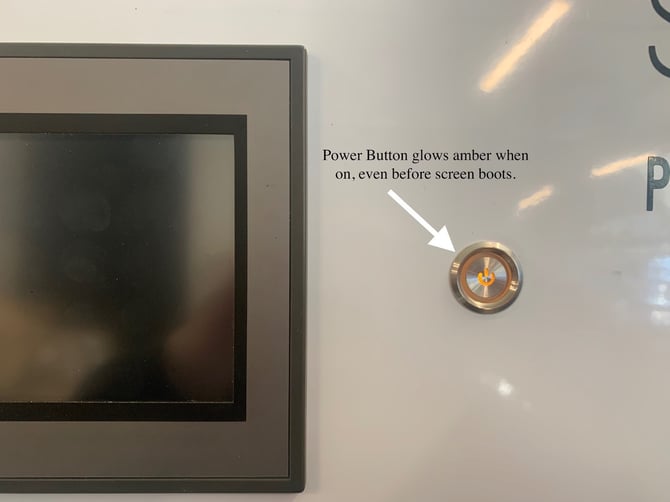
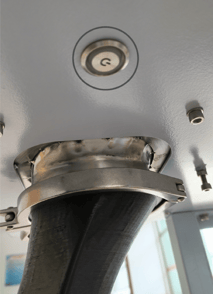
Precision Fill Power Button
(right-hand side of screen)
Precision Fill Mini Power Button
(underside right-hand side of screen)
Calibration
Your Precision Fill was calibrated during production, however we recommend re-calibrating your machine to account for possible changes in regional electrical supply, or any shifting of components during shipping.
To perform a re-calibration you’ll need the following:
- An accurate, electronic scale that can read up to 2kg (4.5lb~)
- A bucket, able to hold around 2kg of coffee (4.5lb~)
- Ensure the Precision Fill is level, and stable with all 4 feet on the ground.
-
- If your readout displays ‘OFL’, please check you’ve removed the shipping brackets. You can follow the Precision Fill / Precision Fill Mini Uncrate and Assembly guide for this step.
If your machine reads ADOFL, please contact support.
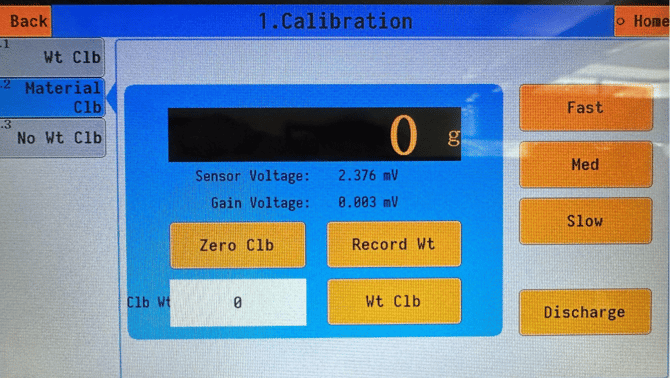
- Place your bucket underneath the discharge chute, and click ‘Fast’ and ‘Discharge’ on the right side to ensure the machine is empty.
- Click Fast and Discharge again to make sure the discharge gate inside the machine is closed and the Fast Feed is turned off.
- Wait for the read-out (where it says 0g) to stabilize, and then press ‘Zero Clb’ to set the zero calibration, and wait for it to complete.
- Place the bucket onto the scale, tare, and weigh out 2000g of coffee into the bucket.
- Load your 2000g into the machine, and press ‘Fast’, and wait for all of the coffee to enter the weighing chamber.
- Wait for the read-out to stabilize and click the ‘Record Wt’ button.
- In the ‘Clb Wt’ white box (underneath ‘Zero Clb’, that shows ‘0’) enter 2000.
- Click ‘Wt Clb’, the readout should read 2000g. You can now click Discharge to empty the coffee, remember to press Discharge once all the coffee has been discharged.
- Click Home to go back to the Home Screen.
You have now calibrated your Precision Fill!
Creating, Selecting & Modifying a Recipe
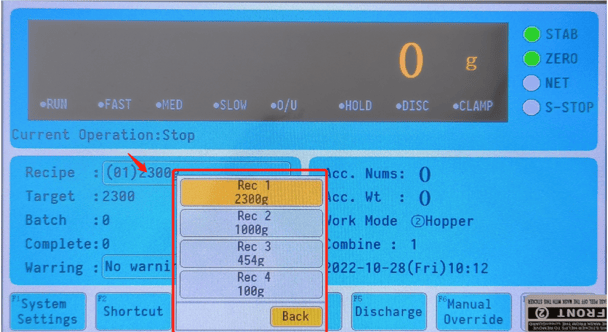
On the Home Screen, tap the recipe name. You will get a list of recipes that you can select from, and you can quickly change to your desired recipe from this list by simply clicking on it. The Precision Fill comes with 5 pre-loaded recipes, and you can create up to 20 recipes.
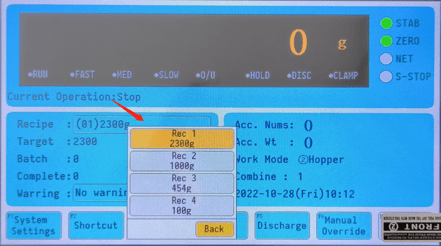
- Rec 1 - 2300g (~5lb)
- Rec 2 - 1000g
- Rec 3 - 454g (~16oz)
- Rec 4 - 100g
- Rec 5 - 500g
- Target
- Fast Feed
- Medium Feed
- Slow Feed
Understanding Fast, Medium and Slow Feed
The Precision Fill system uses three feed speeds to balance speed and accuracy based on bag size/recipe selected.
- Fast Feed: Opens the gate fully for quick bulk filling, and only used for large bags (1000g and above).
- Medium Feed: Partially opens the gate for controlled filling, and used mid-sized bags (150g and above).
- Slow Feed: Closes the gate and uses a vibrating plate for precise, low-slow filling, used for small weights (150g and under) or final top-off.
The weight listed next to a feed is the weight difference from the target weight which will shut off that feed type. For example, take the recipe below:
- Target: 340
- Fast: 340
- Medium: 180
- Slow: 12
Since the Fast Feed is set to the target weight, Fast Feed will not initiate and the machine will switch to Medium Feed. At 180g before the target weight (in this case, 160g in the weighing chamber), Medium Feed will disengage and Slow Feed will stay active until 12g before the target weight. At 12g from target weight (meaning 328g is already measured by the Precision Fill), all feeds will shut off and the remaining coffee already in motion will fall into the chamber to reach the final weight.
Creating a New Recipe
Before you create a new recipe, you’ll need to check how many recipes you have ‘active’. You can do this by clicking on the current selected recipe, and looking for the recipe at the bottom of the list. From the example below, you can see our 100g recipe says “Rec 4” above it. When you go to create a new recipe, you’ll need to select the new recipe number. As recipes 1 to 4 are already active, we’ll use Recipe 5 for our new recipe.
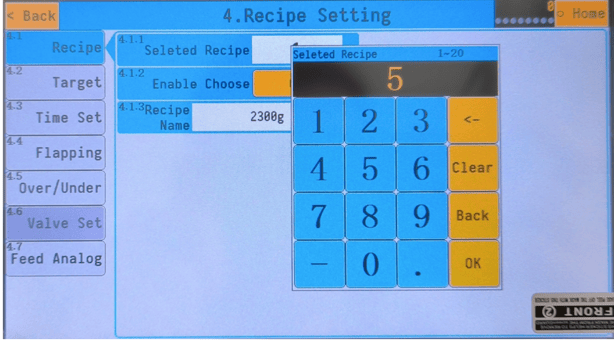
- Click ‘System Settings’, enter the password ('0' or '000000 ' by default), and click ‘4. Recipe Settings’. Right of the ‘Selected Recipe’ enter ‘5’ as this is our next inactive recipe in the list. Ensure ‘Enable Choose’ is on to make sure the recipe is active
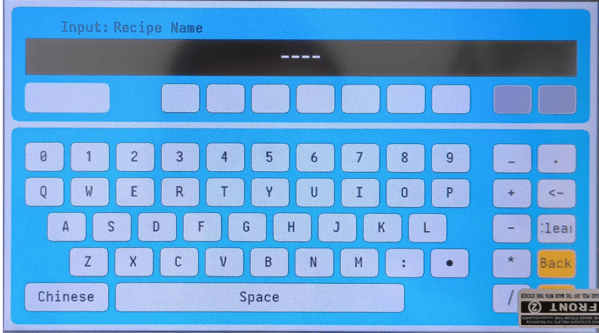
- Click ‘Recipe Name’ and for this example we’ll be creating a 500g recipe, so we’ll name it ‘500g’.
- If you’re typing but no text appears in the recipe name, you may need to click ‘Chinese’ in the lower left to change the language into English.
Click ‘target’ to enter your target weight, for our 500g recipe, we’ll enter 500g.
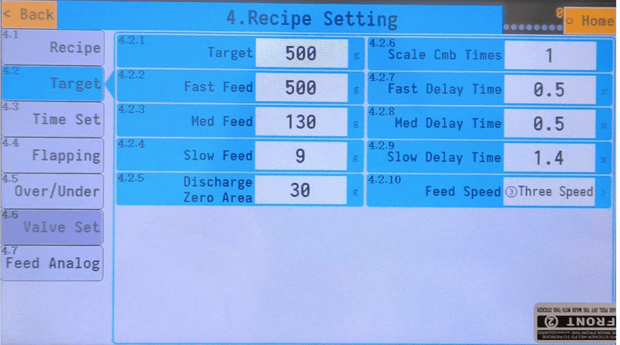
- For your Fast, Medium and Slow Feed settings please ensure you’re familiar with Understanding Fast, Medium and Slow Feed before continuing.
- Setting Fast Feed
Fast Feed is typically used for recipes over 1000g, so we won’t use it for this 500g recipe. To disable it, enter 500g in the text box next to “Fast Feed.” Alternatively Click Two Speed “Med/Slow” on 4.2.10 Feed Speed.
Setting Fast Feed for Recipes over 1000g
Fast Feed is used only for recipes weighing more than 1000g. When setting up your first recipe with Fast Feed, begin by using the same Medium and Slow Feed values from your 500g recipe. Set the Fast Feed value to 900 as a starting point. From there, follow the same adjustment steps used to dial in the Medium Feed value (as outlined in Step 10), while keeping the Fast Feed setting unchanged initially. It's generally easy to identify if the Fast value is incorrect: if it’s set too low, the machine will dispense significantly more coffee than the target weight; if it’s too high, the filling process will take noticeably longer to complete.
- Setting Medium Feed
This value can be adjusted later. For now, set it to 350g by tapping the text box next to “Med Feed.” - Setting Slow Feed
To demonstrate recipe tuning, we'll begin with a higher-than-needed value. Enter 25g in the text box next to “Slow Feed.” - Test the Recipe
Return to the home screen. Make sure there's coffee in the hopper, the air compressor is on, and a container is positioned under the outlet. Tap “Start Running” in the bottom right corner. You should immediately hear the main valve gate, the vibrators activate, and see the weight begin to increase. - Check for Consistency
Run the recipe 3 times. The weight will likely be below the 500g target—this is expected for now. Instead, focus on consistency: each cycle should be within ±1g of the others.
Creating a New Recipe: Consistency vs. Accuracy
When setting up a recipe, the goal is to find the lowest Fast and Medium Feed values that still produce consistent results, as this ensures optimal speed and efficiency. Focus on achieving consistency first. Consistent outputs are more important than hitting the exact target weight initially. A recipe that produces varying results (e.g., 496, 482, 508 for a 500g target) is considered inconsistent, even if it seems near accurate. To stabilize the output, gradually increase the Medium Feed by 10 until the weights are consistent (e.g., 502, 503, 501). Once the output is stable, use the Slow Feed to fine-tune accuracy: increase it by the number of grams over the target if overweight, or decrease it by the number of grams under if underweight.
- Set Medium Feed
If the recipe is producing consistent results, try speeding it up by reducing the Medium Feed value by 10. Run 3 cycles. If the results remain consistent, continue lowering by 10 and retesting until consistency is lost. Then, increase the value by 10, this is your fastest consistent Medium Feed setting.
If results are inconsistent, do the opposite: increase the Med Feed value by 10 until consistency is achieved. This also gives you the optimal Medium Feed speed.
- Fine-Tune Slow Feed
After finding a consistent Med Feed value, fine-tune the recipe to hit your target weight using this simple rule:
If you're over the target weight, increase the Slow Feed value by the number of grams over.
If you're under the target weight, decrease the Slow Feed value by the number of grams under.
- Continue Fine-Tuning
Run several more cycles. If needed, adjust the Slow Feed value further using the same method as before to reach the target weight.
Medium and Slow Feed Values Across Recipes
Medium and Slow Feed values are generally similar across recipes, regardless of target weight. Minor adjustments may be needed for each recipe. For very dense or very light coffees (e.g., decaf vs. peaberry), consider creating separate recipes.
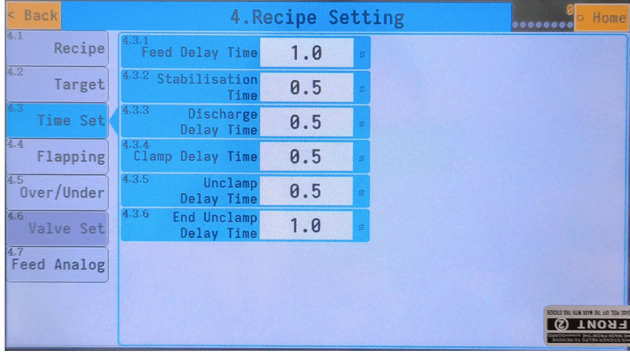
We recommend the following time settings, you can experiment with these and make them shorter, it’s recommended to ensure your recipe is fully working and accurate first before amending these settings. Just like the Fast, Med, Slow Feed, you want these numbers to be as low as possible, while maintaining consistency and accuracy.
Over/Under is a setting that triggers an alarm if the filled weight falls outside the set tolerance. For example, with a ±5g tolerance, the coffee won’t dispense when the foot pedal is pressed if the weight is off. You'll need to press ‘Clr Alarm’ to acknowledge the error and continue.
The rest of the recipe setting categories - Flapping, Valve Set and Feed Analog you don’t need to edit, and you can keep these settings as they are.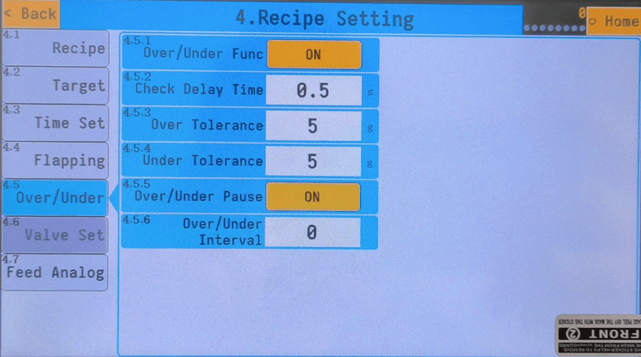
Click ‘Home’ in the top right corner, and when you click on the recipe list you’ll see our new 500g recipe under ‘Rec 5’.

Operating your Precision Fill
Normal Standard Operation
- Ensure the air compressor is running, the air supply to the machine is on, and the machine is powered on. Confirm that the air pressure is set to 0.4 MPa.
- Plug in the foot pedal and position it for comfortable use.
- Load coffee into your Precision Fill.
- Click Recipe on the left side of the screen, and select your recipe from the list.
- On the Home Screen, tap the “Start” button in the lower right corner.
- You should immediately hear the weighing cycle begin. Once the weight stabilizes, place a bag on the fill head and press the foot pedal to discharge the coffee. The Precision Fill will begin loading the next bag.
- You can empty the machine by placing a bucket underneath the discharge spout, clicking ‘Manual Override’, and then selecting ‘Fast’ and ‘Discharge’.
- Once all of the coffee is emptied, click ‘Fast’ and ‘Discharge’ again to turn off, and then you can turn off the machine by pressing the power button.
Changing Outlet Heads
SOVDA offers a range of outlet head attachments designed to fit virtually any coffee bag—from large 5 lb wholesale bags to small retail packages. No matter which attachment you choose, swapping heads is quick and easy:
- While holding the attached head securely, loosen the tri-clamp until it can swing away from the connection point.
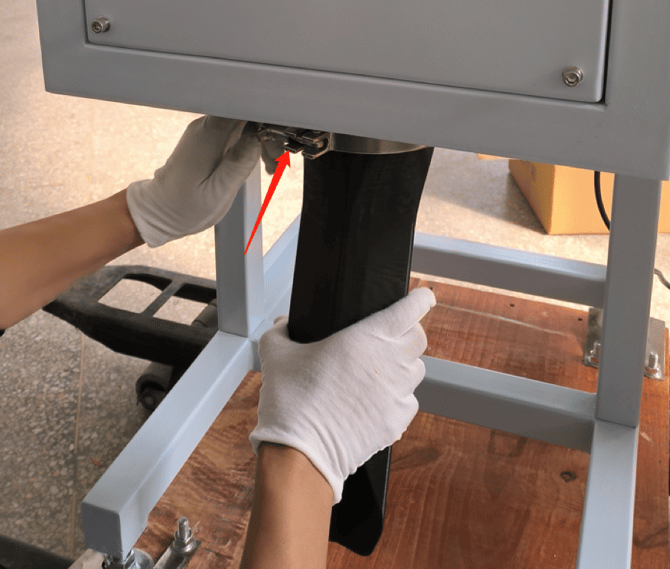
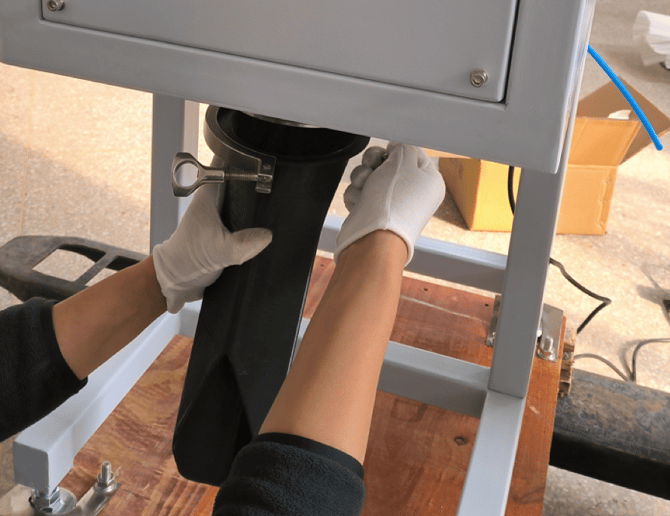
- Position the tri-clamp around the metal ring (flange) on the new head you want to attach, and slide the head and tri-clamp assembly onto the outlet connection.
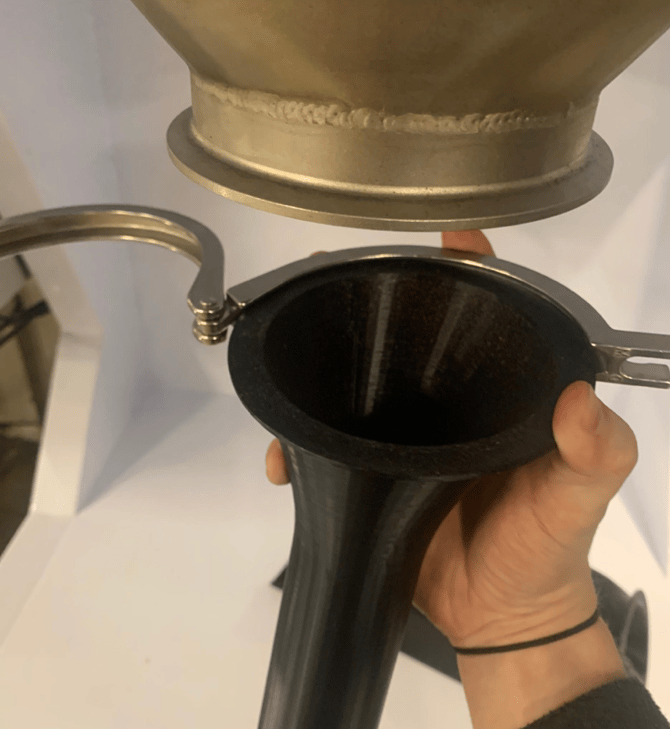 |
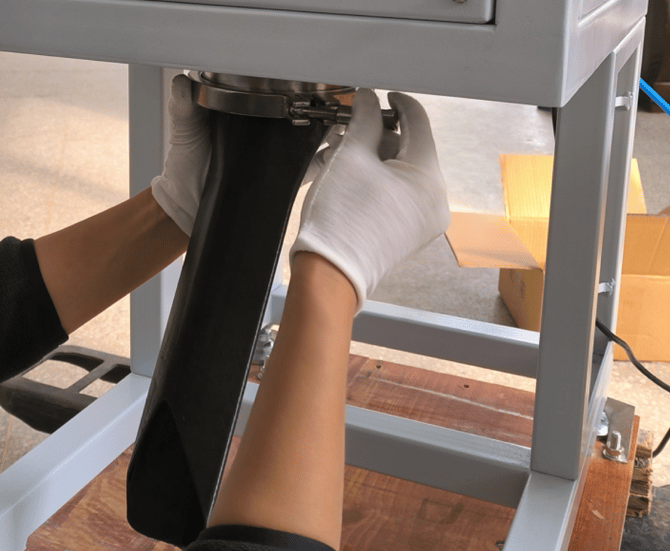 |
- Adjust the head to the desired angle, then tighten the tri-clamp securely to lock it in place.
Software Functions
Home Screen

| 1. Precision Fill Readout |
The Scale Readout displays the current weight of coffee being dispensed. It updates in real time as the product fills the bag. |
| 2. Operation Indicator Panel |
The Operation Indicator Panel displays the names of various machine components. When a component is active or running, its name lights up green. This provides a quick visual confirmation of the machine’s current operation status. |
| 3. Current Operation Status |
The Current Operation Status section shows what the machine is doing in real time. This readout helps you monitor the filling process and quickly identify where the machine is in its cycle or if it's waiting for an action. |
| 4. Recipe |
Recipe is your active, current recipe that is loaded on your Precision Fill. |
| 5. Target |
Target is the target weight of the recipe selected above. |
| 6. Batch |
Batch is the amount of bags you’ve set to complete. If set to 0, this is inactive. |
| 7. Completed |
When using the Batch feature, complete is the amount of bags you’ve completed within your batch. |
| 8. Warning / Alarm |
Warning will indicate any warnings or alarms within the machine. Generally, you’ll find your Over/Under alarm here. Click to clear, or use 16. ‘Clr Alarm’. |
| 9. Acc. Nums (Accumulated Number) |
Acc. Nums is the amount of bags you’ve filled since the last time you reset the data. If you haven’t reset, this would be the amount of bags you’ve done in total over the Precision Fill’s lifespan. |
| 10. Acc Wt (Accumulated Weight) |
Acc. Wt. is the amount of weight you’ve filled since the last time you reset the data. If you haven’t reset, this would be the amount of weight you’ve done in total over the Precision Fill’s lifespan. |
| 11. Work Mode |
Work Mode refers to the setup of the hopper inside the machine, for this machine it should be set at ‘2 Hopper’. |
| 12. Combine |
Combine is the amount you need to combine the recipe to achieve the target weight. (E.g If the target is 10kg, but you’re only filling 2.5kg, your combine value would be 4. (4 x 2.5kg) |
| 13. Date / Time |
This is the current date and time on the Precision Fill. |
| 14. System Settings |
Allows you to access the system settings. The default password is '0' or ' 000000' |
| 15. Shortcut |
Shortcut allows you to easily access the recipe settings of the recipe selected. |
| 16. Clr Alarm (Clear Alarm) |
Clr Alarm is used to clear any warnings or alarms that show under No 8. |
| 17. Zero |
Zero will zero the scale. |
| 18. Discharge |
Discharge will open the discharge gate, and all coffee in the weighing chamber will discharge. |
| 19. Manual Override |
Manual Override is used to test specific functions of the machine manually, and it’s used to diagnose issues with the machine. |
| 20. Start / Stop |
This starts, or stops the filling function of the machine. |
| 21. Scale Status |
These four green lights provide real-time feedback on the state of the scale. Each light corresponds to a specific condition: Stab: The scale weight is stable and not fluctuating: Zero: Indicates the scale is at zero weight Net: Does not apply to this machine. S-Stop: Does not apply to this machine. |
Shortcut Screen
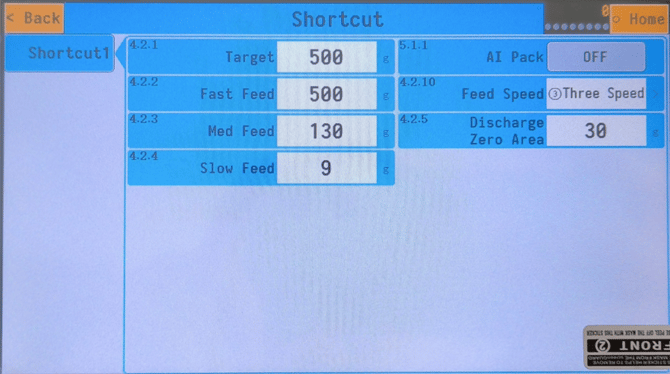
Target: The Target output weight for the recipe (the amount of coffee you’d like in the bag)
Fast, Med & Slow Feed: Please see Creating, Selecting and Modifying a Recipe.
AI Pack: Turns on/off the intelligent packing function.
Note: If you switch this on, it will modify your values. Please make a note of your Fast, Medium and Slow Feed values before turning this on.
Feed Speed: Switches between Three Speed or Two Speed (Fast & Slow) or (Med & Slow)
Discharge Zero Area: When the remaining beans in the weighing chamber are less than or equal to the Discharge Zero Area value, the Precision Fill will trigger a brief delay before completing the unload. This allows time for all remaining beans to fully discharge.
For example, if Discharge Zero Area is set to 50g, and only 30g remain as unloading nears completion, the system will pause momentarily to ensure all beans exit the weighing chamber before finalizing the cycle.
Recipe Time Settings Screen
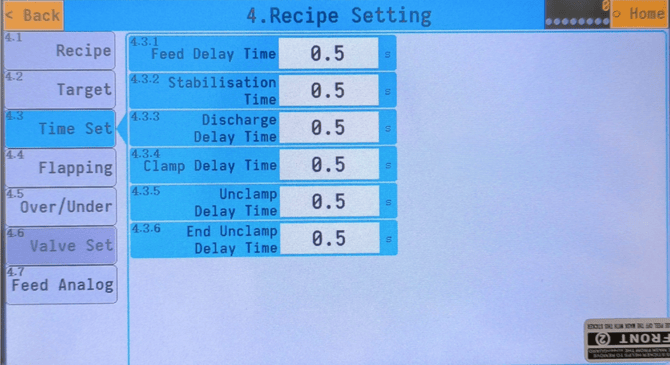
Feed Delay Time: The delay before the machine begins feeding after a cycle starts.
Stabilization Time: The waiting period after feeding ends, allowing the scale to stabilize before proceeding.
Discharge Delay Time: The pause after feeding is complete, before the discharge gate closes.
Clamp Delay Time: The delay between pressing the foot pedal and the start of coffee discharge.
Unclamp Delay Time: The delay before the system automatically releases the bag clamp.
End Unclamp Delay Time: The brief pause after the unclamp action is complete, before the next cycle begins.
Manual Testing Screen
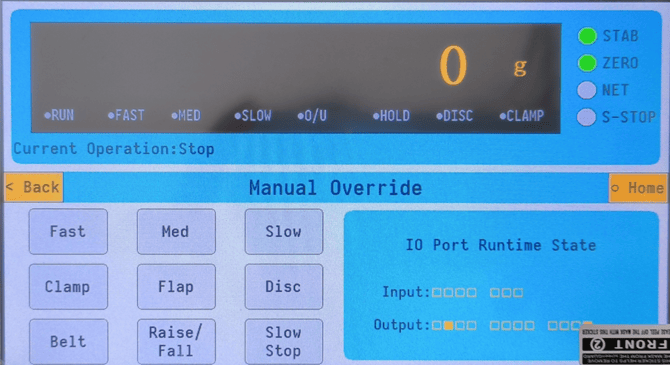
Fast: Manually activates the Fast Feed gate.
Med: Manually activates the Medium Feed gate.
Slow: Manually activates the Slow Feed vibration plate.
Clamp: Simulates a foot pedal signal to trigger the clamp and discharge sequence.
Flap, Belt, Raise/Fall: Not used in this machine configuration.
How to Set Number of Batches (Set-Bat function)
The Precision Fill has a “Set-Bat” function that allows you to specify the number of bags to fill, this is your batch count. Once the set number of batches is completed, the machine will automatically stop filling. To resume filling after a batch is complete, tap “Clr Alarm” on the main menu.
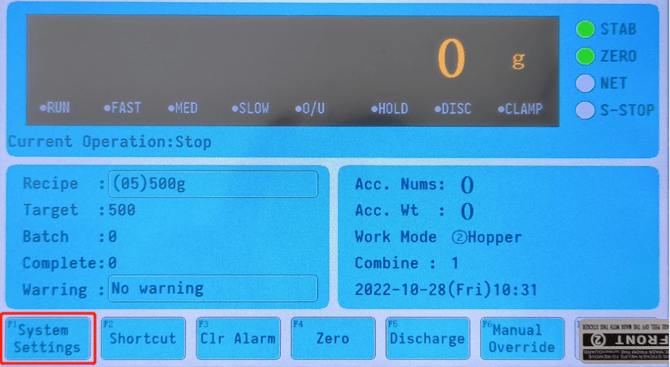
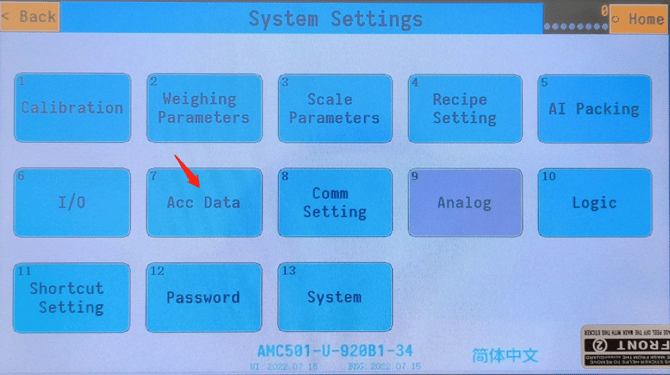
To set your batch, go into System Settings, go to ‘7. Acc Data’, and enter the number of bags under ‘7.1.1 Batch Set’.
Note: If Batch Set is set to 0, the function is inactive. The Batch feature is only activated when the value is greater than 0.
 |
 |
 |
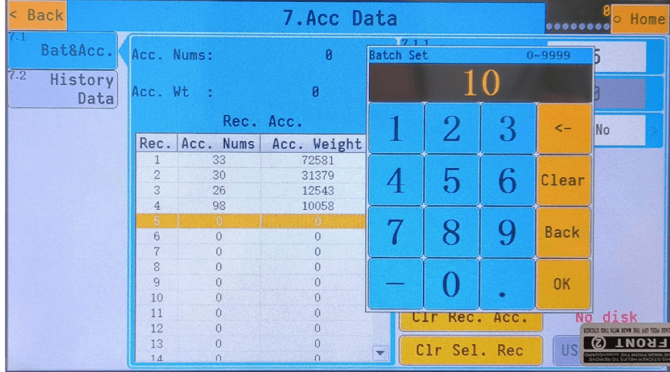 |
Once set, you’ll be able to see the total Batch number, and the amount you’ve completed underneath your Recipe selection, and above your alarms/warning.
System Settings & Preferences
Changing the Language
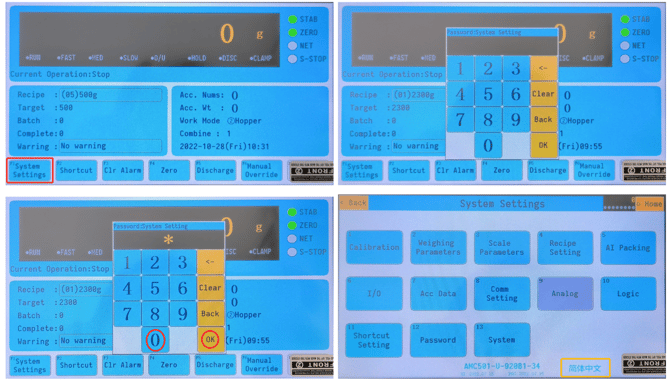
The Precision Fill currently supports English and Chinese. To change the language click System Settings in the lower left corner. Then click English or 简体中文 (Chinese) on the bottom center-right of the screen.
Changing the Password
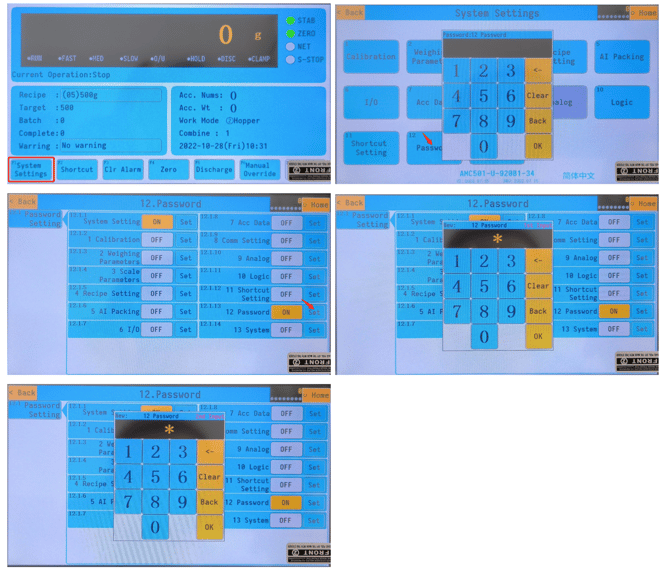
You will receive a password prompt when you go to system settings. By default the password is 0. If you wish to change the password, go into system settings, click 12. Password and then next to 12.1.13 Password, click ‘Set’, enter your new password, and then re-confirm the new password.
Changing between Metric & Imperial Measurements
If you’re weighing bags in ounces, we still recommend weighing and operating in grams for the Precision Fill, to ensure more accurate weighing. Simply just convert your weights from pounds to grams.
You can do this by dividing your weight in lb by 2.205. For example: 1(lb) / 2.205 = 454(g)
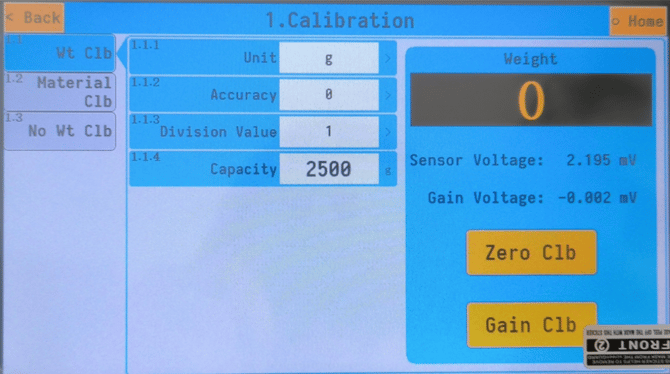
To change your measurement units, go into system settings, click 1. Calibration, you’ll see the following screen below, from there you can click 1.1.1 Unit, and change to oz/lb.
Calibration Screen Overview
Unit: This is the unit that is shown (g, kg, oz, lb)
Accuracy: This sets the decimal place, we recommend keeping this at 0.
Division Value: This is the increments the machine will weigh. (e.g. If the Division Value is set to 2, the machine will weigh in increments of 2g (2g, 4g, 6g etc)
Capacity:This is the capacity of your weighing chamber. Please do not edit, or this will cause overflow, and coffee will spill inside your machine.