
Contents
System Settings, Camera Settings, Background Plate Settings, Light Settings
Important Notices
Camera Compartments
It’s important to note that your Pearl Mini has been carefully calibrated by a skilled technician. We strongly encourage you to not open any of the camera hatches on the front, or the back of the Pearl Mini. If the cameras are misaligned, this will greatly affect sorting performance and your machine will need to be calibrated, which will incur costs of a technician.
Electrical Cabinet
There may be times where you might need to access the Electrical Cabinet of the Pearl Mini, in the instance of a fuse or breaker tripping. If doing so, please disconnect or isolate power to the Pearl Mini first. Even in the off state, there is still numerous of live electrical components that are exposed, and if touched can lead to major, or fatal results. Please proceed with caution. If you are unsure, please get in touch with our Service Department.
Compressed Air
Compressed air is extremely dangerous. Please ensure you are wearing the appropriate personal protective equipment when operating with compressed air, and never point the air gun at anyone.
Turning on your Pearl Mini
If this is your first time turning on the Pearl Mini, please read Unlocking Your Pearl Mini
Once your Pearl Mini receives electric, you’ll see two silver power buttons on the right-hand side.
The left is to power on the Pearl Mini. The one that glows right should be treated as an emergency stop button only, as this will isolate all power to the machine. We strongly recommend you turn off the Pearl Mini via the screen functions to ensure a safe and smooth shutdown.
To turn off your Pearl Mini. Press the Green back arrow in the top right hand corner until you reach the main screen, and press the button listed ‘OFF’. Confirm the prompts and this will turn off the machine.
How the Pearl Mini Works
The Pearl Mini is a colour sorting machine that combines the use of cameras and air ejectors to sort coffee, and remove stones, quakers and burnt beans from your coffee
Once coffee is loaded into your machine, your vibration place will feed coffee down the chute and into the sorting chamber. On the chute itself you’ll see teflon fins that keep the coffee as flat as possible, ensuring in enters the narrow channel of the sorting chamber.
Once inside the sorting chamber, there are two cameras that will scan the front and back of the coffee in an environment that has been carefully calibrated. If the cameras detect a bean that matches your sorting profile, this will send a signal to your ejectors, which is the red LED display in-between your touch screen and power buttons.
Once the defect is in-front of the ejector, this will fire a small amount of compressed air pushing the bean forward, separating it from the rest of the coffee that continues into the narrow chute. All rejects are pushed to the front of the machine, and the rest falls into the acceptance chute that goes to the left of the machine to minimise breakage.
How Colour Sorting Works
As we have refined our software and training over the years, your machine may display different terms than what is listed below. This chart will help you to understand what terms your machine is displaying, and what this manual is referring too.
|
Machine Displays |
Term Used in this Manual |
|
P1 / Sensitivity / Range |
Acceptance Range |
|
P2 / Scale |
Scale |
|
P4 / Spot |
Spot Size |
|
Category A |
Patio |
|
Category C |
Quaker |
|
Category D |
Burnt |
The Pearl Mini works off of two parameters within the Sensitivity Regulation settings. We call these Acceptance Range, and Spot Size. You may see another Parameter under your Patio which is called P2, or Scale, however this should not be changed and should remain at ‘1’. This parameter should only be active on your Patio.
In the Sensitivity Regulation Screen you’ll see two tabs at the top, listed ‘F’ and ‘B’, and each will have it's own settings. You’ll see you’ll have 3 columns which are Patio, Quaker and Burnt and they’ll look like this.
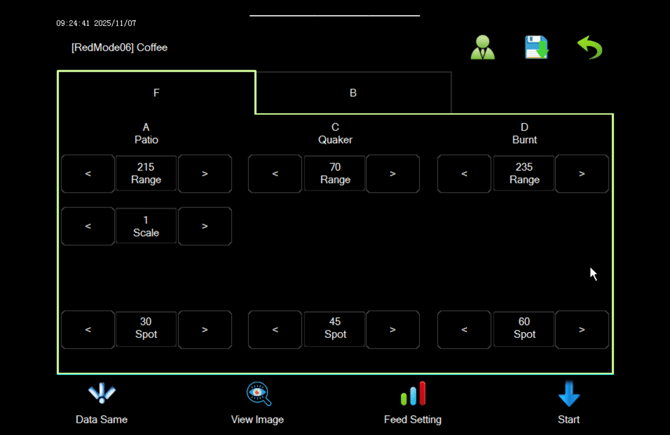
Each of these columns is a category, and a certain colour scale. Patio is a scale that goes from Black to White. Quaker is Red to green and burnt is black to white. On these scales you’ll set your Acceptance Range that goes from 0 to 255. 0 is your anchor and you scale will start here, and then the number you set will be the maximum of your range. This means your machine will only accept the colours within this range, and will reject everything to the right of this scale.
For example, if you are sorting and you're seeing quakers in your acceptance side, you'll need to lower your acceptance range. Essentially 'squeezing' how much coffee you're willing to accept. Alternatively if you're seeing a lot of 'good' coffee in your rejection bucket, you'll need to widen your acceptance range.
A note on Patio and Burnt
These settings shouldn’t really change much what is listed above. Patio around 215 (+/-20) as this is detecting a ‘light grey’ colour. It’s important to note that the Pearl Mini does not replace a destoner, as it only works from colour not density.
Burnt is only detecting completely burnt beans, and not coffee that is slightly darker than the rest of the batch. Think beans that have been roasted twice, and are completely black. This value may need to go higher if you have particularly dark roasts, or a decaf for example.
For example. If your Quaker is set at 70, however you’ll still receiving quakers in your accepted side, then you’ll need to lower your number. In doing so you’re squeezing your acceptance range, and your sorting parameters will be stricter. Alternatively if you’re rejecting too much ‘good’ coffee, you’re acceptance range is too strict, and there forth your acceptance range number will be set higher.
This is true for all of your ‘Range’ values on the top and your front and back camera will have it’s own settings. Your technician should have given you a ‘Delta’ value, which is the difference between the front and back camera.
An example would be a Front Delta of 4, meaning the Front values for your P1/Acceptance Range should be 4 points higher than the Back camera.
You’ll see another extra Parameter on Patio called P2, or Scale. This just flips the default scale of White to Black to it’s Black to White so we’re able to sort Patio. This should always remain at one.
Spot Size / P4
At the bottom you’ll see Spot Size. This refers to the size of the colour the machine is looking for. For reference, around 80-100 is an ‘average size’ bean, however it’s important to note Spot does not correlate to the actual bean size however. The default settings listed here should be suitable for 90% of all of your coffees. However there may be times you might need to adjust this if you have a bean that is smaller than the actual spot size (a smaller than average Peaberry for example).
When adjusting Spot, please ensure you’re adjusting your Range value first, if you lower this by 10 points three times consecutively and you’re not seeing a result, then you should adjust your spot size by 2-3 points. It’s important to only adjust one setting at a time. Just like dealing in a grinder, you should adjust your Range first before your Spot Size.
It’s important to note here that the Pearl Mini only works off these colour scales, and is only looking for the colour and size criteria, this means it’s unable to spot other defects like insect bites, elephant ear, and other defects.
Creating and Saving Profiles
To create a new profile, in your Menu you’ll need to go into File Selection. The Pearl Mini does not allow you to create a ‘New’ profile, however you can ‘Copy’ a profile by using the ‘Save As’ feature. Treat this button similar to a Word document, you’re copying everything in that Profile and saving it as a new profile.
Once you’ve selected your profile, and clicked Save As it will ask you for a name of this new profile. Once confirmed, you Pearl Mini will automatically load into your New Profile. The profile you have currently loaded will be displayed at the top of the screen, and will follow you in most settings.
Once loaded you’ll need to fine-tune your profile. If you take light readings of your coffee, this makes the process a bit easier, as you can Copy (Save As) a profile that has a similar light reading, and fine-tune from there. You can fine tune using the theory above, but in principle your Patio and Burnt values shouldn’t really change too much, and you’ll mostly be fine-tuning your Quaker value.
Once you’re happy with this profile, you’ll need to save. You can do this by going back to File Selection, and to save you’ll need to ‘Overwrite’ the profile within an admin mode. You can enter the Admin Mode by clicking the Green Person icon at the top of the screen, clicking Operator, and entering the password. The password is the date on the machine in an YYYYMMDD format. For example if the date is 2025/11/08, the password would be 20251108 and click confirm. You’ll now see ‘Supervisor’ displayed. Click the Green tick to the right.
Once your in this mode, you’ll see the icon change colour. Click the profile you wish to save, and you’ll see over options appear for 5 seconds. On the right hand side, click Overwrite, and then confirm this. You have successfully saved your profile.
An important note on Saving, and the Supervisor Mode
It’s important to note, that the Save icon (the blue floppy disk) does not save your Profile settings, nor when the machine displays ‘Would you like to save your Parameters’, this does not refer to your Profiles, this only refers to deeper machine settings.
Additionally, when you are in Supervisor mode, you’ll have access to deeper machine settings such as System Settings, Camera Settings and Background Plate Settings. Under no circumstances should anyone go into, or amend these settings. In doing so could cause serious issues with sorting, and could result in a technician having to recalibrate your machine.
Other options that appear are also Delete, Rename, and Lock which can be used too. Lock essentially disables overwriting or deleting the profile, however users are still able to ‘edit’ the profile during sorting, however this will revert back to the settings that were originally saved after the profile has been locked.
AI Mode is an experimental feature, however we don’t recommend use at the moment. If you’d like to learn more about AI Mode, contact your Technical Brand Ambassador or the Service Department.
Mode Switch should not be used, as all profiles should display [Red Mode] before the profile name.
Software Functions
Main Screen

Start - This will start the machine. You can view what profile you’re in by clicking Menu.
Menu - This will go into the main menu of the machine.
OFF - This is the button to turn off the machine, please treat the physical button to the right of the screen as an emergency button.
Network Icon (1) - This will display an IP address if a WiFi Bridge is connected to enable you to remotely access the Pearl Mini.
Telephone Icon (2) - If loaded, this will display Service and Contact Information
Notepad Icon (3) - This is an information list and will contain the current operation history of the Pearl Mini including any active errors.
Person Icon (4) - This is the User switching mode, enabling you to enter the Supervisor mode.
Chart Icon (5) - This is a shortcut to the Vibrator Feed settings that control your vibrator plate. It’s important not to amend this setting, as this will cause issues with sorting performance.
File Icon (6) - This is a shortcut to the File Selection Menu
Circular Arrows (7) - This is a shortcut to force a cleaning cycle of the machine.
Sensitivity Regulation
F and B - These tabs are the two individual set of settings for the front and back camera.
Range / Sensitivity / P1 - This is your acceptance Range value
P2 / Scale - This is your Scale value, this should not be changed.
P4 / Spot - This is your Spot Size
Data Same - This button is not used
View Image - This will allow you to view an image from the cameras
Feed Settings - This is a shortcut to the Vibrator plate settings.
Start / Stop - This starts and stops the machine
Dust Cleaning Settings
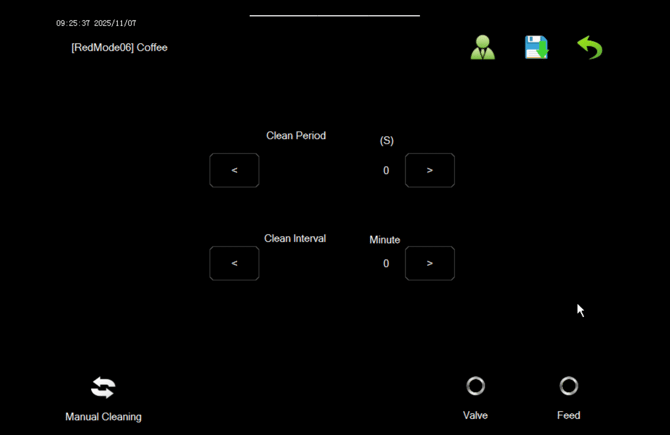
Dust Cleaning settings are saved and set at a profile level, not machine level. This means you can have different settings for different coffees. Both settings are recommended to be at 5, however you can adjust the interval as needed.
Dust Cleaning Time - This sets the delay in how long the wipers will wait to allow the dust to settle before actuating to the other side.
Dust Cleaning Interval - This allows you to set how frequently the Dust cleaning happens, for coffees that have a more silverskin/dust, you may want this more frequently.
Manual Cleaning - This will force the machine to clean.
Valve / Feed - Not used here.
It’s important to note that if you enter the sorting chamber, you must turn off the dust cleaning settings. You can do this by setting both times to 0, and clicking Manual Cleaning to verify this. The dust cleaning is operated pneumatically and can cause injury, even when the machine is off.
Chute Settings
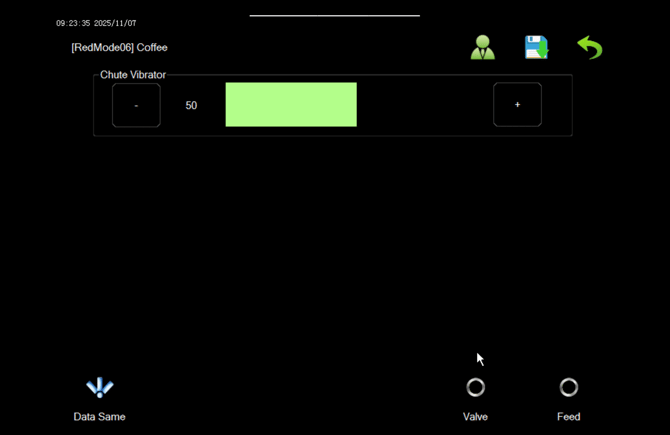
This setting controls the vibrator plate on the machine, and how intensely it vibrates. However this setting should not be touch as this will affect sorting performance.
File Selection
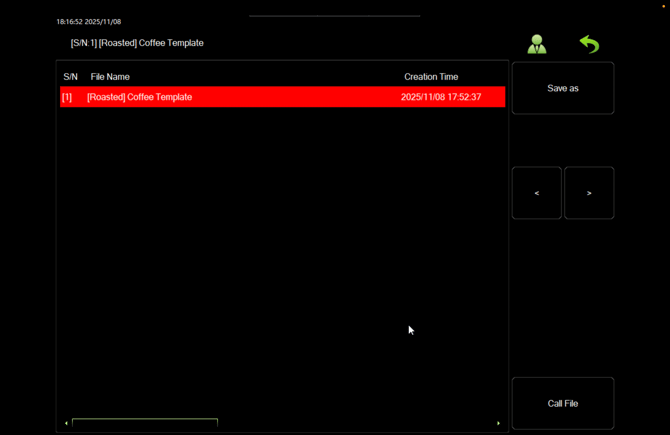
Save As - This copies the profile selected and Saves it as a new Profile
Mode Switch - This setting is not used
Call File - Loads the selected Profile
Viewable once in Supervisor mode, and the profile is selected (options depend on software version)
AI Switch - turns on AI Mode. This is an experimental feature and is not recommended currently, however if you wish to learn more contact your Technical Brand Ambassador or the Service Department
Rename - Renames the selected Profile
Lock - Locks the selected profile, disabling the Overwrite and Delete option. However users can still edit the sensitivity regulation screen.
Overwrite - This overwrites the profile with the current profile settings, including the cleaning settings.
Delete - this deletes the profile.
Valve Test
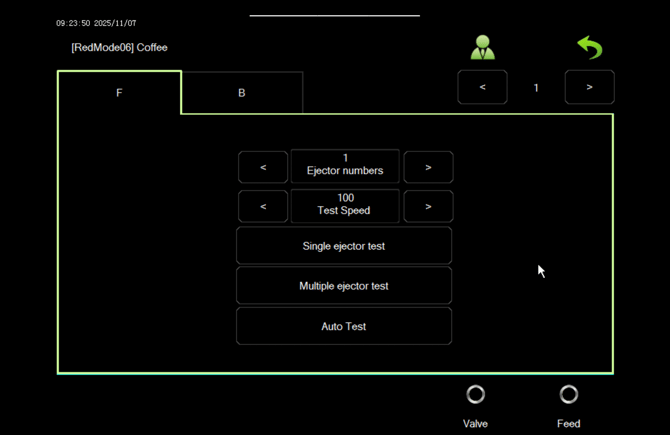
Valve Test is a dialogistic tool that allows you to manually test and actuate the ejectors. This is particularly useful if you have a ‘leaking’ ejector that is stuck open. This will sound like an air leak within the sorting chamber.
You can select Single or Multiple eject test. Single will only fire the ejector number that is listed in ‘Ejector number’. If facing the front of the machine, looking at the ejectors, they go 1-64 from left-to-right. Multiple will fire the whole set of ejectors in quick succession.
Auto-test will automatically fire the ejectors. You may wonder why there are two sets of ejectors indicated on the screen, and the LED display to the right of the screen, but only one set of ejectors inside the machine. The two displays are actually signals from the front and back camera telling the computer which ejector to fire.
For ejectors to fire, you need ‘Valve’ to be active (red) on the lower right.
System Settings, Camera Settings, Background Plate Settings, Light Settings
These setting will require admin mode to enter, however it’s strongly recommend that you do not touch or amend these settings as any amendment could cause serious performance issues when sorting. If this does occur, a technical will need to visit you to recalibrate your machine. If you’d like to learn more, please contact your Technical Brand Ambassador or the Service Department.
Cleaning and Maintenance
The Pearl Mini has an automatic cleaning feature that is controlled by the programmable interval in the dust cleaning settings. This essentially acts like a windscreen wiper on a car, and keeps the glass clear to enable the cameras to see.
We do recommend to either use a vacuum, or by using the air gun to blow all dust out of the sorting chamber at the end of each day. Be careful when using the air up the chute as the teflon fins can damage easily, and ensure they are flat with the chute once finished.
We strongly advise you do not use any chemicals or liquids inside the sorting chamber.
There is an access panel on the cyclone above the hopper that you can remove to clean inside the hopper. We advise only vacuum or compressed air here.
Depending on your lift setup, you’ll have a vacuum or a pump box which will also need cleaning and maintenance.
For standard vacuums, these are similar to standard home vacuums, where you’ll twist the bottom and empty the bag.
For Pump Boxes, these inside have a filter, and a cyclone that is similar to what you may have on your roaster. Undo the tri-clamp and discard whats in the container. For the filter on the top, undo the clamps, and in a well-ventilated area (ideally outside) and with a dust mask, used compressed air to clean the filter.
Both vacuums will need cleaning depending on the volume your outputting through them. Start with once a week and adjust as needed. The Pump Box filter can be cleaned when you notice a decrease in conveyance performance.
Tools
On the back of the machine, on the left hand side there is a small tool cabinet which contains tools to help you maintain your machine. These include replacement fuses, replacement wipers, cable ties, and usually your technician will have put the cabinet key here, as well as any other tools that came within your blue envelope on delivery.
Filters & Teflon Fins
Your machine will alert you after 5000 operational hours that your filters need to be changed. You can order a replacement set of filters via SOVDA Service. It’s important to make sure you install the filters in the correct order.
Firstly shut-off your air to your Pearl Mini by using the red shut-off valve, and if there is still air in the system you can use the air gun to drain the remaining air.
Slowly undo the filter housing by twisting to the left. Once removed squeeze the metal clip holding the filter in, and take the filter out. Note on the filter housing, and on the top of the filter which one it is. There will be 3 variants. From left to right they will go AX, AA and AO. Please check the order, and that the corresponding housing matches. Place the filter inside the housing, insert the clip, and slowly screw back on. There is a small rubber O-ring inside the assembly, so please be cautious as damage to this O-Ring will cause a leak within the air filter.
We recommend you replace your Teflon fins at the same time as replacing your air filters. This can be done by removing the plate at an angle and unscrewing the sheet between the two metal places. Replace the fins and carefully insert, reseting each end on the designated slots on either side of the chute.
Recalibration
Overtime, cameras may shift, and components will age. This is why we recommend a recommissioning of your Pearl Mini after 2-3 years, or 200 tonnes, whichever comes first. This way we can ensure your machine is still optimise for performance, we can carry out a check on the machine, and keep your staff well trained. To find out more about recalibration, please contact your Technical Brand Ambassador or the Service Department.