
Creating a New Recipe
The Precision Fill comes with 5 pre-loaded recipes and supports up to 20 in total. Before creating a new one, check how many recipes are already active by tapping the current recipe name on the Home Screen and scrolling to the bottom of the list. Note the last active recipe number — your new recipe will use the next available number.
Step 1 — Open Recipe Settings
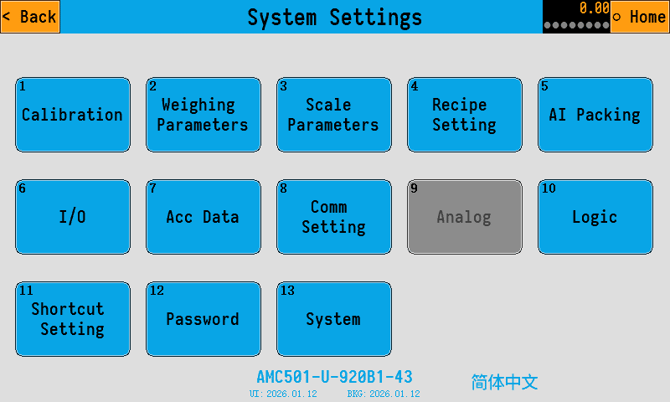
Tap System Settings, enter the password (default: 0 or 000000), and tap 4. Recipe Settings.
Step 2 — Assign a Recipe Number
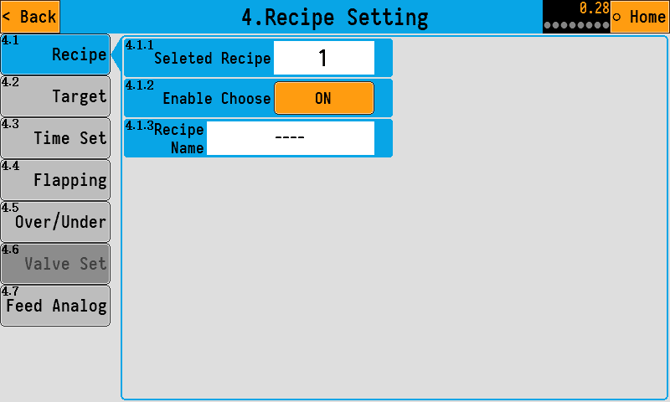
In the field next to Selected Recipe, enter the next available recipe number (e.g. if Recipes 1–4 are active, enter 5). Make sure Enable Choose is turned on so the recipe appears in your list. Unused Recipes usually will have a blank name, such as "-------".
Step 3 — Name the Recipe
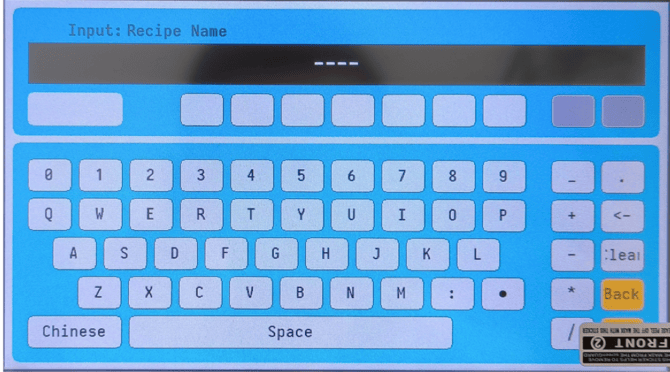
Tap Recipe Name and enter a name (e.g. 500g).
If text isn't appearing as you type, tap Chinese in the lower left to switch the keyboard to English.
Step 4 — Set the Target Weight
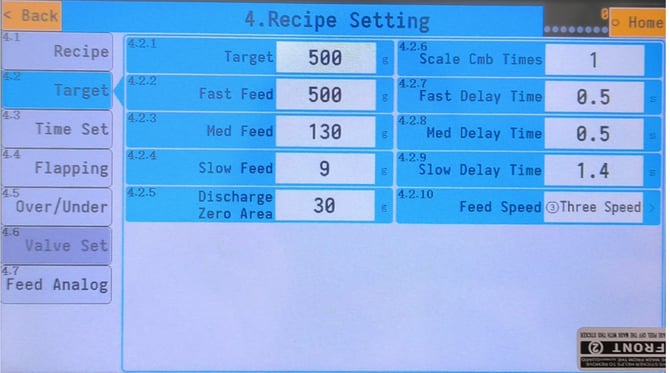
Tap Target and enter your desired fill weight (e.g. 500g).
Step 5 — Configure Your Feed Settings
Before setting these values, it helps to understand how each feed stage works.
Understanding Fast, Medium, and Slow Feed
The Precision Fill uses three feed speeds to balance speed and accuracy:
- Fast Feed — fully opens the gate for rapid bulk filling. Used only for recipes over 1,000g.
- Med Feed — partially opens the gate for controlled filling. Used for mid-range fills (150g and above).
- Slow Feed — closes the gate and only uses the vibrating plate for precise, low-speed filling. Used for small weights (under 200g) or as a final top-off on all recipes.
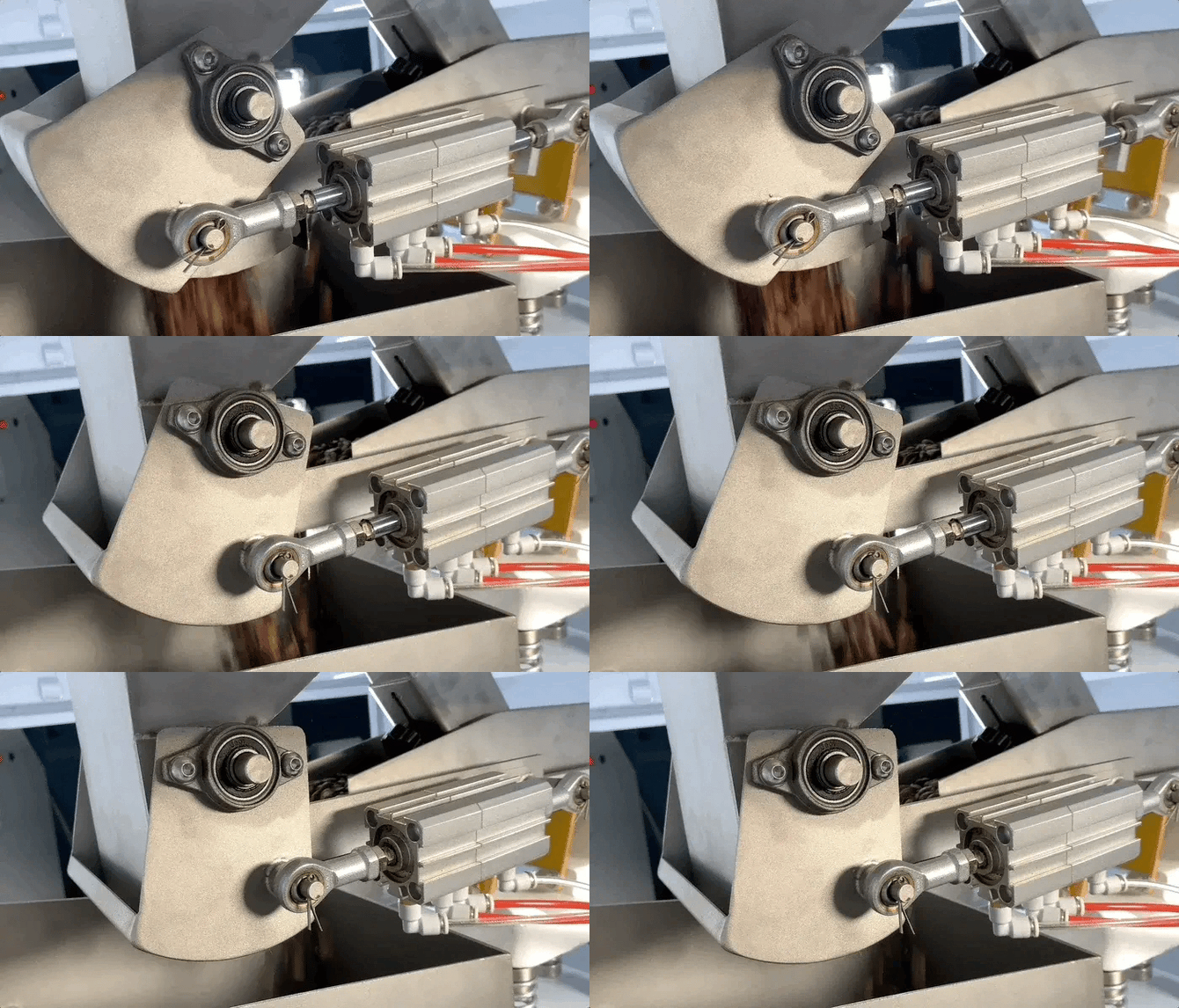
Each feed value represents the weight remaining before the target at which that feed stage shuts off. For example:
| Parameter | Value |
|---|---|
| Target | 500g |
| Fast Feed | 500g (disabled) |
| Med Feed | 130g |
| Slow Feed | 9g |
- Since Fast Feed equals the target, it never activates — the machine goes straight to Med Feed
- Med Feed shuts off when 180g remains before target (i.e. 370g is in the chamber)
- Slow Feed shuts off when 9g remains — the coffee already in motion settles into the chamber to reach the final weight
Think of Slow Feed as a settling window. If you're consistently over your target, the window is too short — increase Slow Feed. If you're consistently under, the window is too long — decrease Slow Feed.
Step 6 — Set Fast Feed
For recipes under 1,000g, disable Fast Feed by either:
- Entering the target weight in the Fast Feed field, or
- Setting the Feed Speed to Two Speed (Med/Slow) in the Shortcut screen
For recipes over 1,000g, see the Fast Feed section below.
Step 7 — Set Med Feed
Enter 160g as a starting point. This will be fine-tuned later.
Step 8 — Set Slow Feed
Enter 10g as a starting point. This will also be adjusted once the recipe is running.
Dialling In the Recipe
Consistency First, Accuracy Second
A recipe that produces varying results (e.g. 496g, 482g, 508g) is inconsistent — even if the average is close to target. Always stabilise consistency before worrying about hitting the exact target weight.
To find your optimal Med Feed:
- Run the recipe 3 times and check whether results are within ±1g of each other
- If consistent → try reducing Med Feed by 10g and retest. Keep reducing until results become inconsistent, then add 10g back. This is your fastest consistent Med Feed value.
- If inconsistent → increase Med Feed by 10g and retest. Keep increasing until results stabilise. This is also your optimal Med Feed value.
The ideal Med Feed is the lowest value that still produces consistent results — this keeps cycle times as fast as possible.
To hit your target weight with Slow Feed:
Once your output is consistent, apply this rule:
- Over target → increase Slow Feed by the number of grams you're over
- Under target → decrease Slow Feed by the number of grams you're under
Run a few more cycles after each adjustment and repeat until you're reliably hitting your target.
Setting Up Fast Feed for Recipes Over 1,000g
For recipes over 1,000g, Fast Feed should be enabled to speed up the early bulk-fill stage.
- Use the same Med Feed and Slow Feed values from your dialled-in 500g recipe as a starting point
- Set Fast Feed to 900g to begin
- Dial it in using the same approach as Med Feed:
- If Fast Feed is too low → the machine will significantly overfill
- If Fast Feed is too high → cycles will take noticeably longer to complete
- Adjust in increments until you find the lowest consistent Fast Feed value
Selecting and Modifying an Existing Recipe
To modify an existing recipe, tap the recipe name on the Home Screen to open the recipe list, select the recipe you want to adjust, and then tap Shortcut to edit its values. The same principles apply — adjust Med Feed for consistency, and Slow Feed for accuracy.

Key Takeaways
| Problem | Solution |
|---|---|
| Inconsistent output (range > 4g) | Adjust Med Feed |
| Consistently off-target (accurate but wrong weight) | Adjust Slow Feed |
| Both inconsistent and off-target | Fix Med Feed first, then Slow Feed |