
How the Pearl Mini Works
The Pearl Mini is a colour sorting machine that combines the use of cameras and air ejectors to sort coffee, and remove stones, quakers and burnt beans from your coffee.
Once coffee is loaded into your machine, your vibration place will feed coffee down the chute and into the sorting chamber. On the chute itself you’ll see teflon fins that keep the coffee as flat as possible, ensuring in enters the narrow channel of the sorting chamber.
Once inside the sorting chamber, there are two cameras that will scan the front and back of the coffee in an environment that has been carefully calibrated. If the cameras detect a bean that matches your sorting profile, this will send a signal to your ejectors, which is the red LED display in-between your touch screen and power buttons which shows which camera is sending a signal to the ejectors to fire.
Once the defect is in-front of the ejector, this will fire a small amount of compressed air pushing the bean forward, separating it from the rest of the coffee that continues into the narrow chute. All rejects are pushed to the front of the machine, and the rest falls into the acceptance chute that goes to the left of the machine to minimise breakage.
How Colour Sorting Works
As we have refined our software and training over the years, your machine may display different terms than what is listed below. This chart will help you to understand what terms your machine is displaying, and what this manual is referring too.
|
Machine Displays |
Term Used in this Manual |
|
P1 / Sensitivity / Range |
Acceptance Range |
|
P2 / Scale |
Scale |
|
P4 / Spot |
Spot Size |
|
Category A |
Patio |
|
Category C |
Quaker |
|
Category D |
Burnt |
The Pearl Mini works off of 2 parameters within the Sensitivity Regulation settings. We call these Acceptance Range, and Spot Size. You may see another Parameter under your Patio which is called P2, or Scale, however this should not be changed and should remain at ‘1’. This parameter should only be active on your Patio.
In the Sensitivity Regulation Screen you’ll see two tabs at the top, listed ‘F’ and ‘B’, and each will have it's own settings. You’ll see you’ll have 3 columns which are Patio, Quaker and Burnt and they’ll look like this.
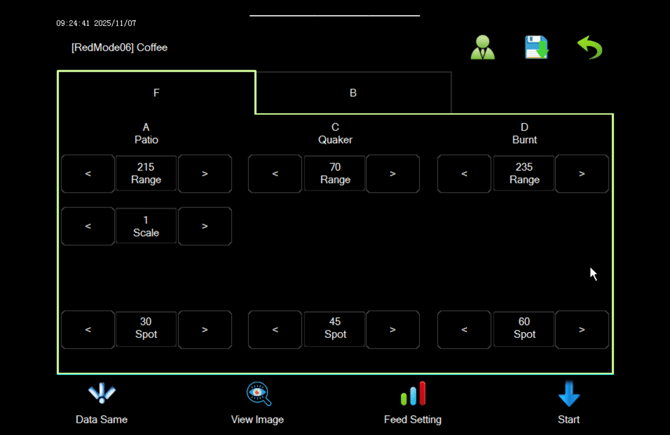
Each of these columns is a category, and a certain colour scale. Patio is a scale that goes from Black to White. Quaker is Red to green and burnt is black to white. On these scales you’ll set your Acceptance Range that goes from 0 to 255. 0 is your anchor and you scale will start here, and then the number you set will be the maximum of your range. This means your machine will only accept the colours within this range, and will reject everything to the right of this scale.
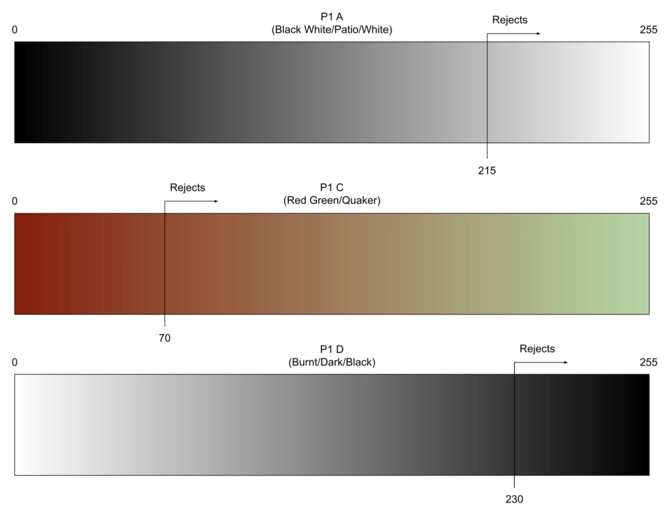
A note on Patio and Burnt
These settings shouldn’t really change much what is listed above. Patio around 215 (+/-20) as this is detecting a ‘light grey’ colour. It’s important to note that the Pearl Mini does not replace a destoner, as it only works from colour not density.
Burnt is only detecting completely burnt beans, and not coffee that is slightly darker than the rest of the batch. Think beans that have been roasted twice, and are completely black. This value may need to go higher if you have particularly dark roasts, or a decaf for example.
For example. If your Quaker is set at 70, however you’ll still receiving quakers in your accepted side, then you’ll need to lower your number. In doing so you’re squeezing your acceptance range, and your sorting parameters will be stricter. Alternatively if you’re rejecting too much ‘good’ coffee, you’re acceptance range is too strict, and there forth your acceptance range number will be set higher.
This is true for all of your ‘Range’ values on the top and your front and back camera will have it’s own settings. Your technician should have given you a ‘Delta’ value, which is the difference between the front and back camera.
An example would be a Front Delta of 4, meaning the Front values for your P1/Acceptance Range should be 4 points higher than the Back camera.
You’ll see another extra Parameter on Patio called P2, or Scale. This just flips the default scale of White to Black to it’s Black to White so we’re able to sort Patio. This should always remain at one.
Spot Size / P4
At the bottom you’ll see Spot Size. This refers to the size of the colour the machine is looking for. For reference, around 100 is an ‘average size’ bean, however it’s important to note Spot does not correlate to the actual bean size however. The default settings listed here should be suitable for 90% of all of your coffees. However there may be times you might need to adjust this if you have a bean that is smaller than the actual spot size (a smaller than average Peaberry for example).
When adjusting Spot, please ensure you’re adjusting your Range value first, if you lower this by 10 points three times consecutively and you’re not seeing a result, then you should adjust your spot size by 2-3 points. It’s important to only adjust one setting at a time. Just like dealing in a grinder, you should only be changing one parameter at a time (grind vs dose).
It’s important to note here that the Pearl Mini only works off these colour scales, and is only looking for the colour and size criteria, this means it’s unable to spot other defects like insect bites, elephant ear, and other defects.
Creating and Saving Profiles
To create a new profile, in your Menu you’ll need to go into File Selection. The Pearl Mini does not allow you to create a ‘New’ profile, however you can ‘Copy’ a profile by using the ‘Save As’ feature. Treat this button similar to a Word document, you’re copying everything in that Profile and saving it as a new profile.
Once you’ve selected your profile, and clicked Save As it will ask you for a name of this new profile. Once confirmed, you Pearl Mini will automatically load into your New Profile. The profile you have currently loaded will be displayed at the top of the screen, and will follow you in most settings.
Once loaded you’ll need to fine-tune your profile. If you take light readings of your coffee, this makes the process a bit easier, as you can Copy (Save As) a profile that has a similar light reading, and fine-tune from there. You can fine tune using the theory above, but in principle your Patio and Burnt values shouldn’t really change too much, and you’ll mostly be fine-tuning your Quaker value.
Once you’re happy with this profile, you’ll need to save. You can do this by going back to File Selection, and to save you’ll need to ‘Overwrite’ the profile within Supervisor mode. You can enter the Supervisor profile by clicking the Green Person icon at the top of the screen, clicking Operator, and entering the password. The password is the date on the machine in a YYYYMMDD format, so will change every day. For example if the day is 13 November 2025 , the password would be 20251113 and click confirm. You’ll now see ‘Supervisor’ displayed. Click the Green tick to the right.
Once you're in this mode, you’ll see the icon change colour to blue. Click the profile you wish to save, and you’ll see over options appear on the right sidebar for 5 seconds. Click Overwrite, and then confirm this. You have successfully saved your profile!